Dieser Artikel ist derzeit nur auf Englisch verfügbar.
Fun Facts about Text Boxes in Noteastic. A Developer Diary 😎
Hello everyone,
I am Dilan, the main and sole developer of Noteastic, and I wanted to give some fun facts about our most recent feature!
As you know, we recently released Noteastic Pro, and our figurehead feature are text boxes. It was the absolute most requested feature in Noteastic by a MILE and we wanted to make it right. And I am confident we did. Lukas has already shared our design process, and I thought I will give my developer perspective as well 😊
Why text boxes took a year to come to Noteastic
I started work on text boxes one YEAR ago. And let me tell you, it was a long journey. This has been an exhaustive process, to say the least. Sure, we redesigned our website, made some updates in between, implemented authentication and accounts, and we integrated Stripe as our payment provider, but it was always clear to us that we won’t release without text boxes being finished.
Why a text box is the hardest control in a note-taking app
I mean yeah, I didn’t really work on it every day for one whole year. But if I would say how much total work time I have spent, I can confidently say it was about 4 months of pure full-time work on text boxes.
Text is complicated. It is by FAR the most complicated thing I have ever coded. There is just so much you need to consider when creating such a primitive control. I could go rambling about how making a text box touch-friendly is a nightmare on top of all the edge cases I had to handle, but I will just share you the rough component structure so you can see the categories I structured this control into:
Markdown, LaTeX and bullet points: what text boxes can’t do yet
Bullet points, hyperlinks, formatted pasting, headers, markdown rendering, LaTeX rendering, all that is still to be added in the future. It is on my radar, I want it implemented. But for now, our sights are focused on other features (more color buttons, multitasking 👀).
The foundation is here and it stands. That’s what counts.
Text box tricks in Noteastic nobody tells you about
That’s easy, I can tell you more than one thing you won’t know!
- When you export text in Noteastic to a PDF, we actually render the text natively into the PDF. That makes it indexable, searchable, and editable with your PDF viewer of choice. Goodnotes on Windows simply rasterizes (draws) the text onto the PDF, making it look like an image from the perspective of the PDF viewer, ugh!
- Double tap = select word, triple tap = select paragraph, quadruple tap = select all.
- Ctrl+C with nothing selected copies the whole line.
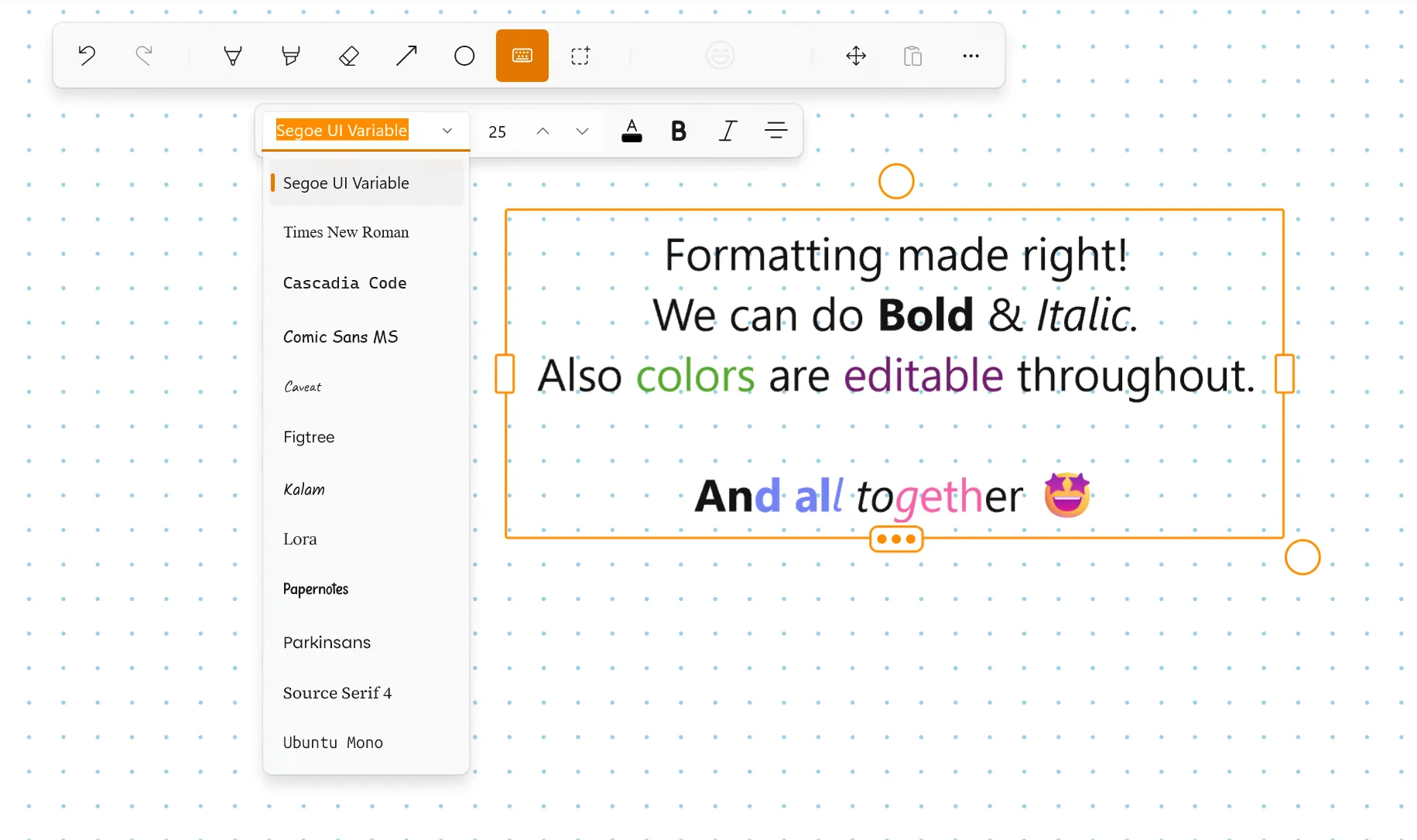
- We have access to all installed fonts on your Windows machine, and by now you can even bring your own: importing custom fonts has shipped. This is what is possible when a note-taking application develops for Windows.
- Our rendering is completely virtualized (from 1.6.12 onward), which means you can paste your entire 42 page scientific paper into one text box, and everything will work as expected (although a bit more laggy). We tried it!
Hope you guys enjoy text boxes as much as I enjoyed implementing them. It was an incredible learning experience and deep dive that I am grateful for having a purpose behind to pursue!
If you want to give text boxes a go, you can simply start the 30-day trial and cancel anytime before you are charged. You can find all the details on our pricing page.
Happy writing,
-Dilan 🧡
Developer of Noteastic