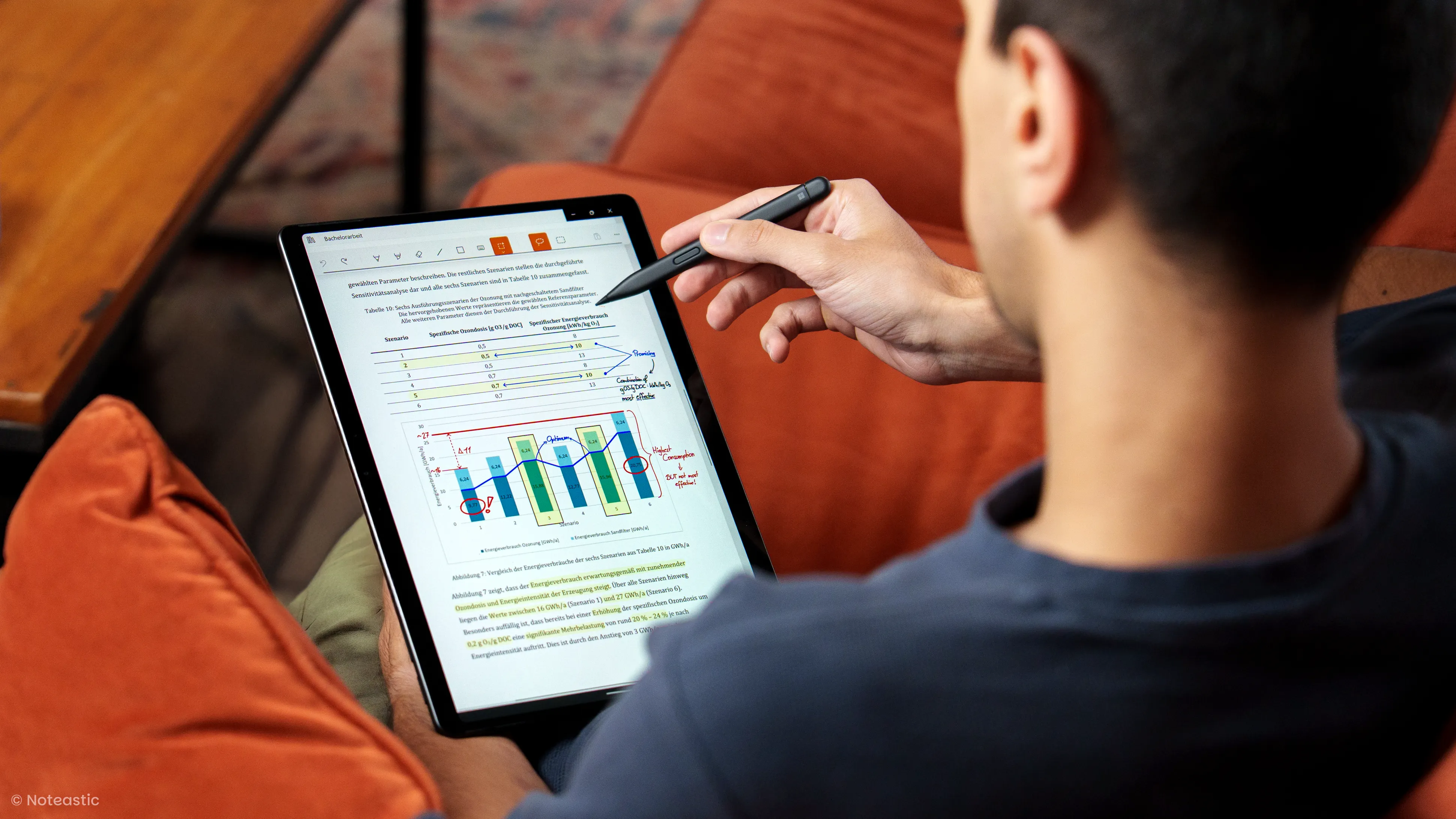
How to annotate PDFs with a Stylus on Windows
It's easy. Just keep these three things in mind.
Introduction
You have a PDF and want to annotate it using your stylus on a Windows device? That’s easy, if you have the right app! Even though the task is trivial, there are a few things the software you are using can either do perfectly right or diabolically wrong. I know what I am talking about, having annotated PDFs and slides throughout my entire studies myself ;). So here are three important things to keep in mind so that you don’t run into any trouble. At the end I also list a few app recommendations.
Page System
The first and most fundamental topic is the following: not all note-taking apps work on a page basis, like your PDF does. For example, OneNote puts your entire PDF on an infinite canvas, which maybe isn’t dramatic when annotating initially, but will become a nightmare when you want to export your PDF later.
So when looking for an app, make sure that it utilizes pages as opposed to an infinite canvas. It also makes navigating through the PDF easier, because you can jump straight to the right page number. That is much easier if the PDF is actually displayed as separate pages.
Smooth Inking Experience
Getting the PDF into the note-taking app is one thing, but if you want to annotate it, you should have a good note-taking experience along the way. Otherwise the process of annotating becomes slow and frustrating.
I talk about this topic in great detail at Choosing the Right Note-Taking App. But without delving too deep into the matter, these are the most important aspects to keep in mind:
A good note-taking application should equip you with the standard tools like pen, highlighter, eraser, lines, and shapes — all working seamlessly. For all of these tools you should be able to freely select color and thickness along the way. Drawing should feel instant. You should not experience lag or see the line be drawn five centimeters behind your actual stylus tip — as this might mean that the app doesn’t handle PDFs well. Editing your notes is also important. Be sure to check if you can select the elements you drew and that you can re-color, scale, and move them arbitrarily.
Exporting
Lastly, and I want to save you from realizing this only AFTER you already annotated a 20-page test exam or a 50-page slide deck, you should be able to export the annotated PDF without friction. Whenever you want to save your notes again as a PDF, send them to friends, or upload them anywhere, you will need to export them. As stated before, having a page-based app is already a good indicator that everything will work in the export, however definitely try to go through the entire process once to check if your app handles it well. Then nothing is in your way anymore!
Good Apps for Annotating PDFs
There are some apps that manage PDFs very well. Here is a list of my recommendations starting with the free options:
Noteastic (Free Tier) Noteastic has a page system, handles PDFs very smoothly, and offers an amazing drawing experience. It checks off all the points I discussed above and is free.
Drawboard PDF (Free Tier)
As the name suggests, Drawboard PDF handles PDFs well, however for note-taking that goes beyond pure PDF annotation you will have to enter their subscription model.
OneNote (Free)
Microsoft’s primary handwritten note-taking application. Unfortunately it has the drawback of an infinite canvas, and PDF exports are a topic people regularly complain about.
Scrivano (Paid)
This application handles PDFs very well and also comes with a nice note-taking experience. It is based on pages and does the topics I talked about above right. You only need to pay after a 30-day trial.
For a deeper comparison of these apps beyond just PDF workflows, check out The Best Handwritten Note-Taking Apps on Windows for Students 2026.
PDF Annotation in a Study Workflow
PDF annotation might be your first step into more sophisticated handwritten note-taking, which is the best way to take notes for learning and long-term knowledge retention. If you plan on embarking on this journey and want to start taking notes more frequently, I recommend you to read my Ultimate Guide to Handwritten Note-Taking on Windows. There you find all you need to get started with handwritten notes in Windows from my perspective as an avid and long-standing note-taker myself.
Happy note-taking!
Lukas
Co-Founder and CEO of Noteastic