I found the best handwritten note-taking app for studying. And it's not OneNote!
Why is it so hard to find a good app!?
I don’t know whether it’s my fault or the world’s, but I had to search for years to finally find the note-taking app I love. I am a student and use a Microsoft Surface with a touchscreen and pen. I thought this was an amazing device because, DAMN, I can write essays and take handwritten notes on the same laptop… How cool is that!? Turns out I had to cycle through 10 handwritten note-taking apps before I finally found the one that actually fits my needs. And my needs are simple: handwritten notes, easy PDF annotation, and a library to organize them. Now I have found an app that works for me, and it makes me the happiest student I have ever been.
What I need from a note-taking app
Handwriting focus
I want to take my notes by hand. That’s a must for me. I find it much easier to focus, understand things better, and simply learn and retain knowledge better when I write stuff by hand. So the note-taking application I use should focus on that. Plain handwritten note-taking. And I don’t need crazy AI assistants to calculate 3 + 2 for me.
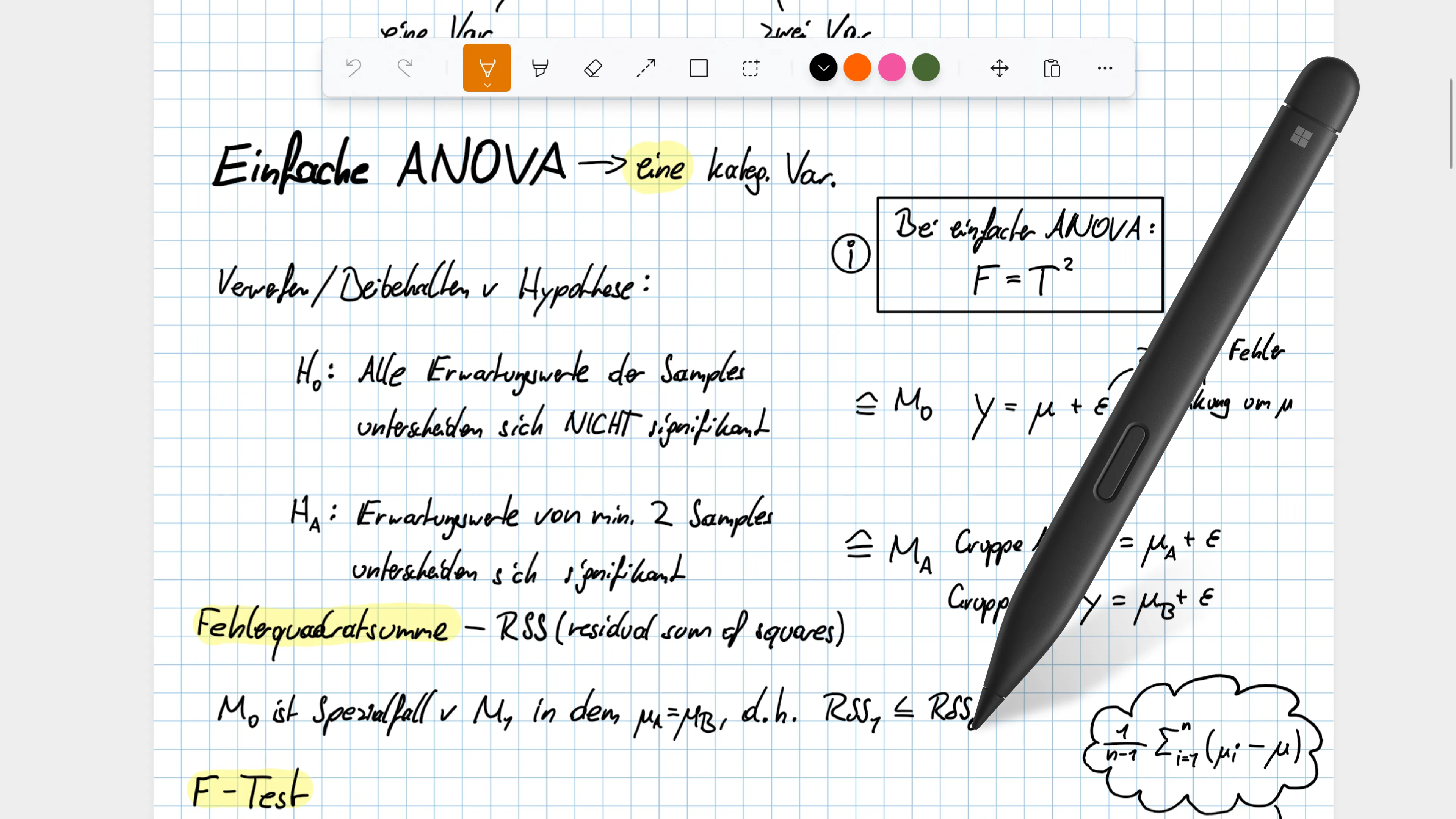
I cherish smooth workflows and intuitive toolsets to make the actual task of writing easier. I want to choose between colors, move stuff around, and draw a straight rectangle every now and then. All that should be packaged in a smooth inking experience that doesn’t make my writing look as if I were starting preschool. Essentially, I want a handwriting-focused application.
PDF handling
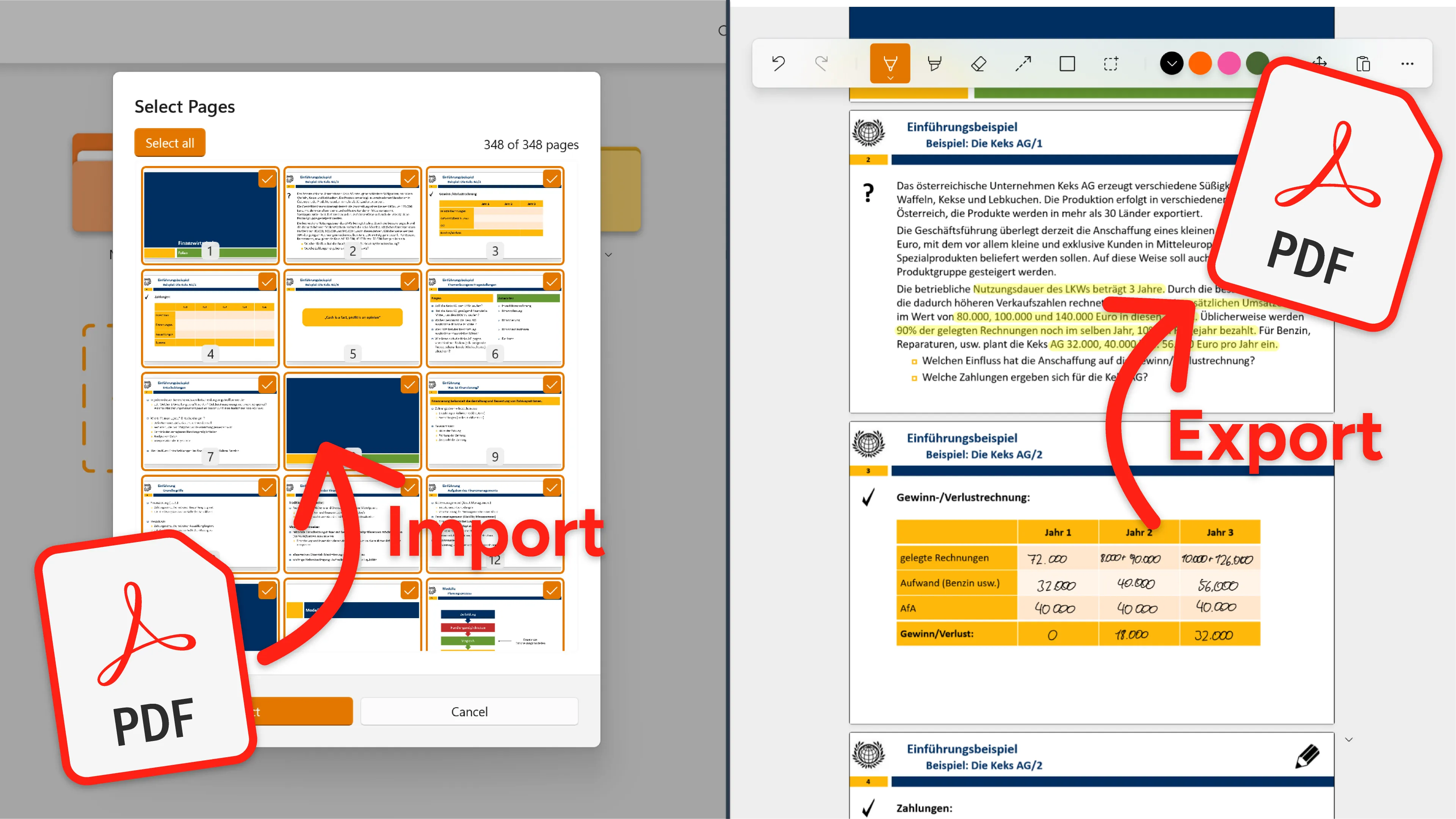
The next thing is PDFs. I am a student, and for every course I enroll in, I have about 10 PDFs I need to work on. From lecture slides to annotate, to papers to read and highlight, over to practice tests to fill out and later analyze for mistakes. So I am really dependent on proper PDF imports and stable PDF handling. Also, whenever I want to share notes with friends, I want to do so by simply exporting them as a PDF.
Library
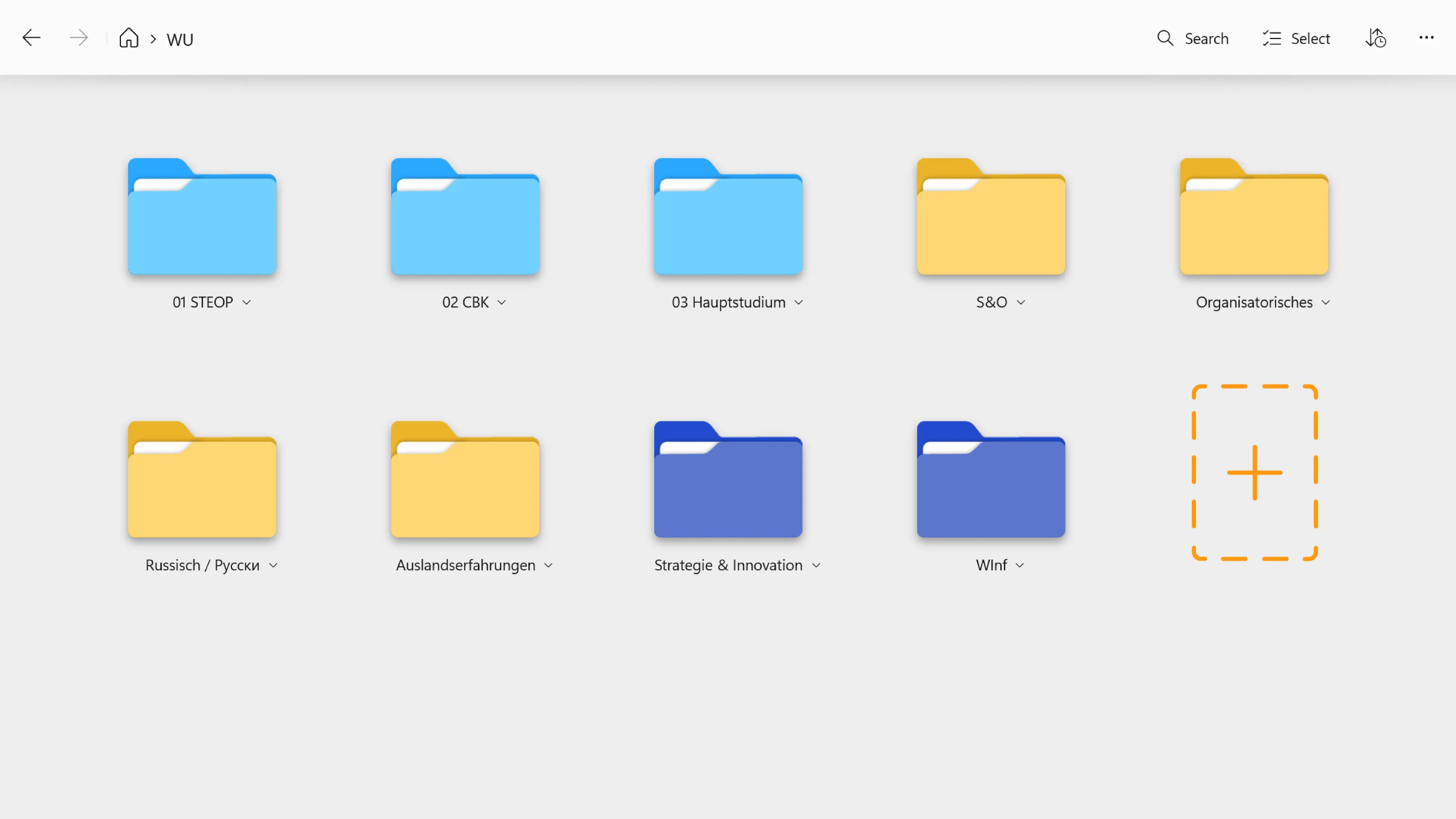
Furthermore, I need a library to organize all my materials. One course often includes several notebooks, and it is absolutely necessary for me to have a folder structure to sort and find my notes. Without a library of some kind, I would get lost immediately. And I don’t feel like I have crazy expectations in this regard, either. I simply want a library where I can put notebooks in folders, name them accordingly, and maybe even color-code them. That’s the least I need to stay on top of everything.
Touch interactivity
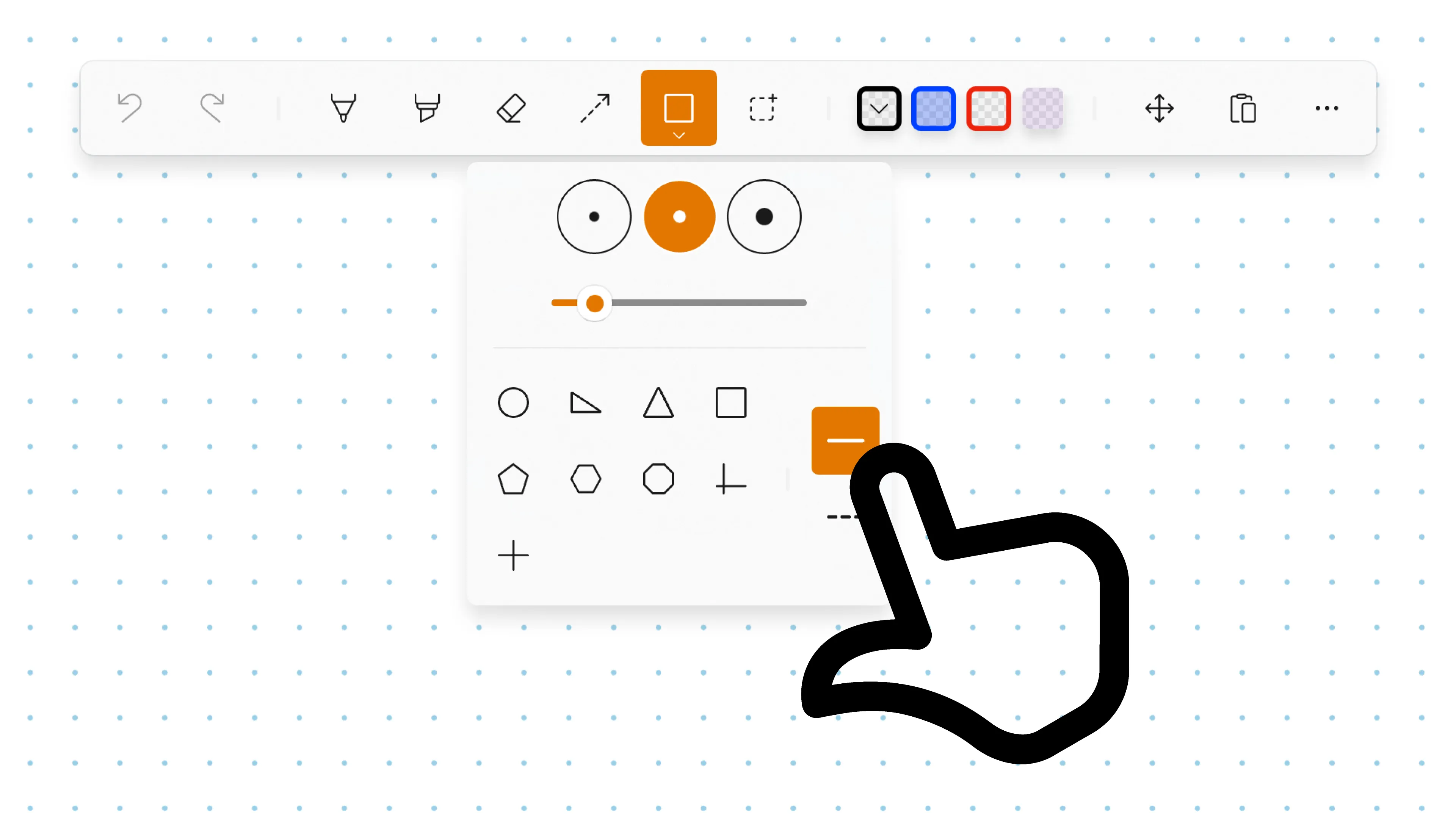
And what I found out is that a good touch interface is super important to me. When I use my laptop in writing mode, I don’t have a keyboard or a mouse, so I navigate using my fingers and my pen. I never thought of it, but buttons need to be twice the size of normal ones so you don’t accidentally miss them. If an app isn’t designed for touch, it’s really hard to click things because a hand isn’t as precise as a mouse pointer. And I want the application I use for handwritten note-taking to account for that!
The apps I used
With these four simple points in mind, I went on to try a few apps. Let me tell you which apps I looked into and what finally made me switch from them.
OneNote
OneNote seemed like the logical first choice when I started taking handwritten notes on my Surface; however, I quickly realized it was not the right app for me. OneNote is huge, and you can do thousands of things with it. However, before I even tried any of those super special features, I was already quite underwhelmed by the most basic things. First, who the heck thought importing PDFs onto an infinite canvas was a good idea? Initially, I thought, “Okay, cool, I can take my notes on the side of the PDF,” but hell broke loose when I tried to export my notes again. Pages were huge, and my notes were cut off. I was embarrassed to share my notes this way.
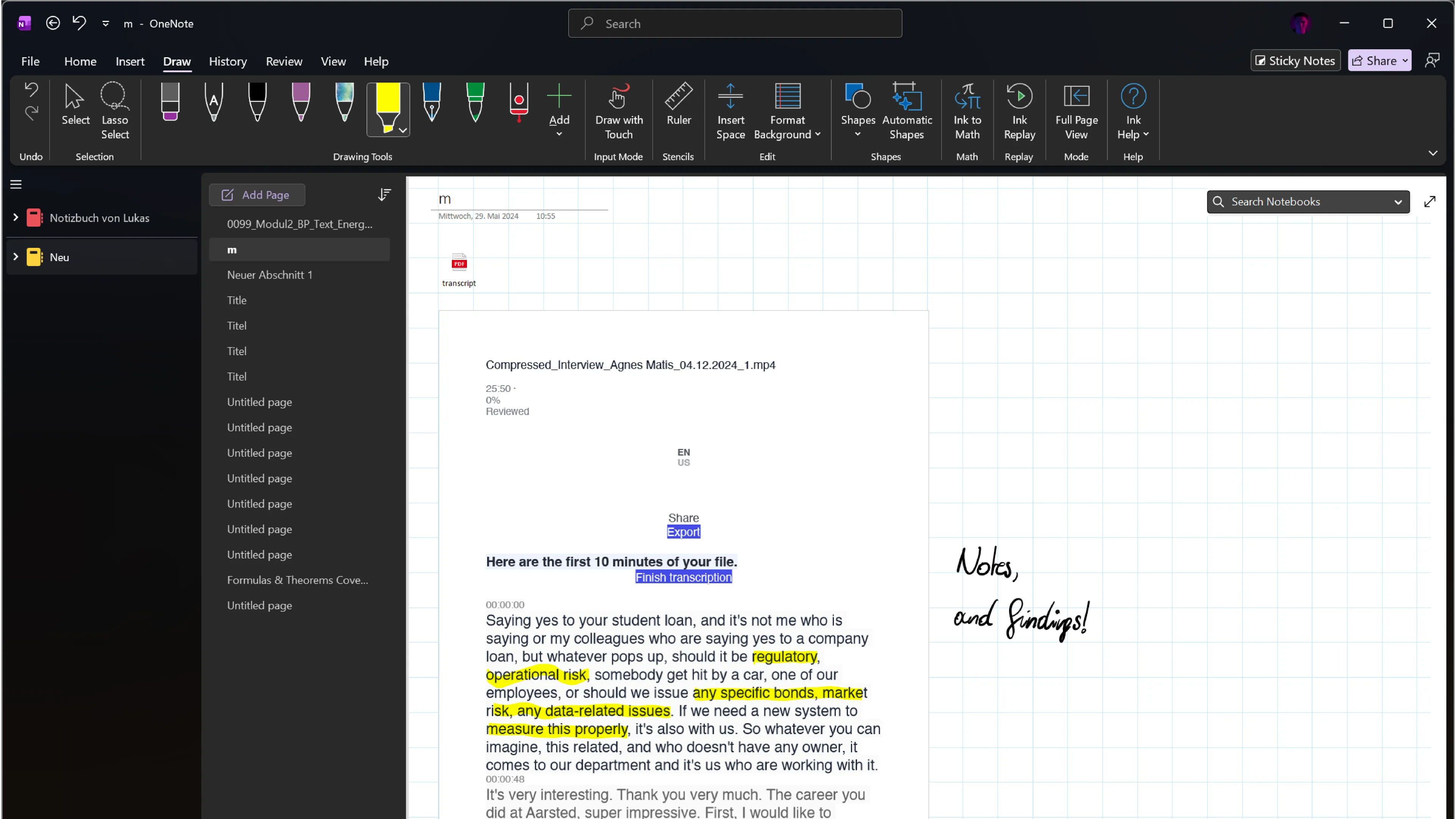
The next thing is that OneNote is simply too much for me. The ‘Draw’ tab is just one of 7 others… I don’t know what I need the rest for, but it takes up space! I am also no fan of the sidebar as the only way to organize my notes. I don’t know exactly what it is, but it feels off to me. I want to see folders and notebooks in a grid, not a small library panel all the time. Click targets are also quite small in the UI, so after a few tries, I decided to look for another program.
Inkodo
After looking through several other apps, I bumped into Inkodo. I was happy to find an app that at least intends to deliver the note-taking app experience I was searching for. Visually, Inkodo isn’t going to turn heads, but I was pleased to discover an app focused on handwriting that offers a library and better PDF support than OneNote.
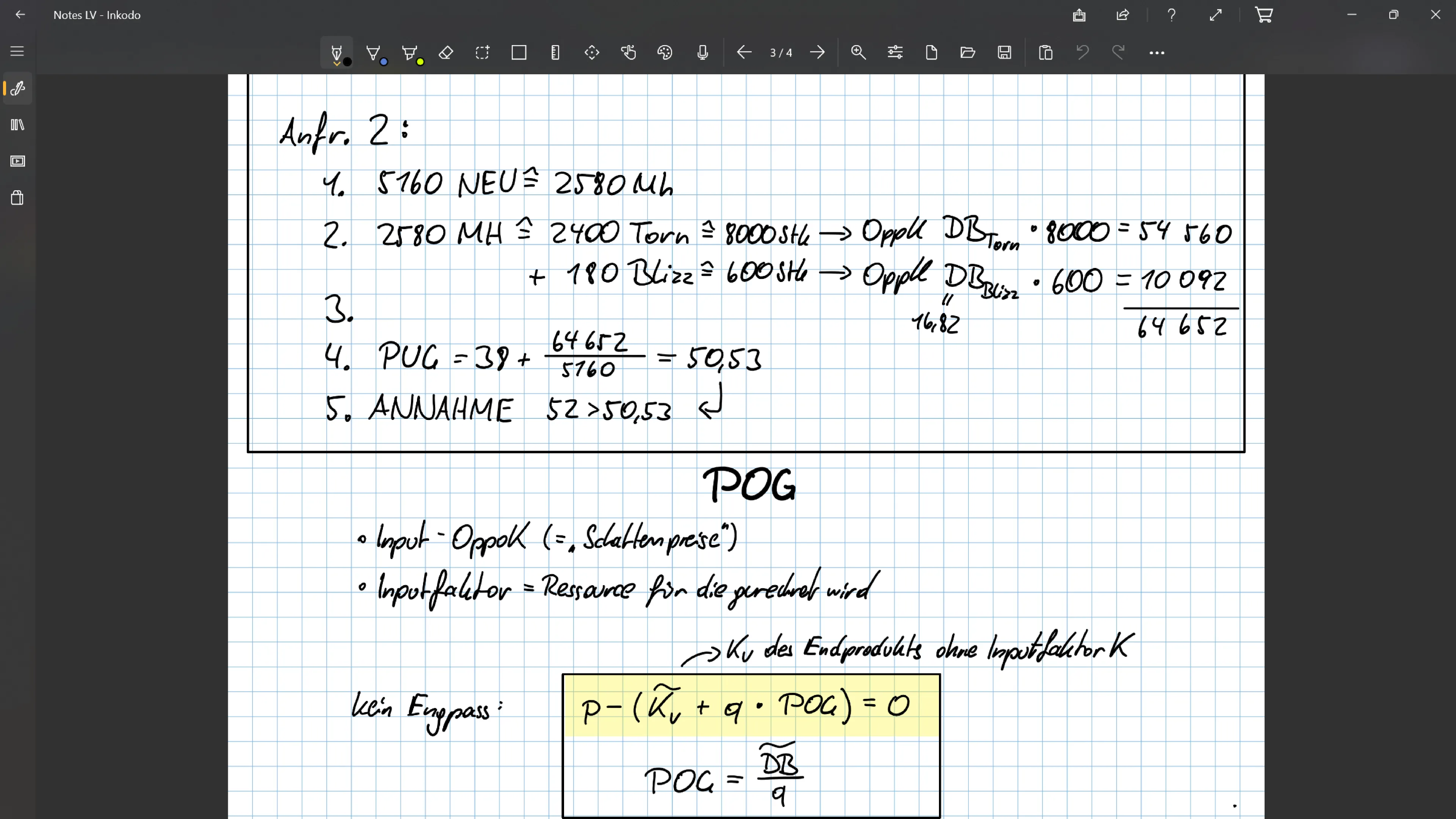
The app worked, somehow, but it was not a breeze to use. Even though it works with PDFs, importing and exporting can take ages. The writing experience does its job; however, tasks like selecting, dragging items around, drawing shapes, or saving color swatches were a bit tedious. But I settled for Inkodo until a better option arose. In the end, I am quite thankful to have had Inkodo as an interim alternative to OneNote.
Noteastic
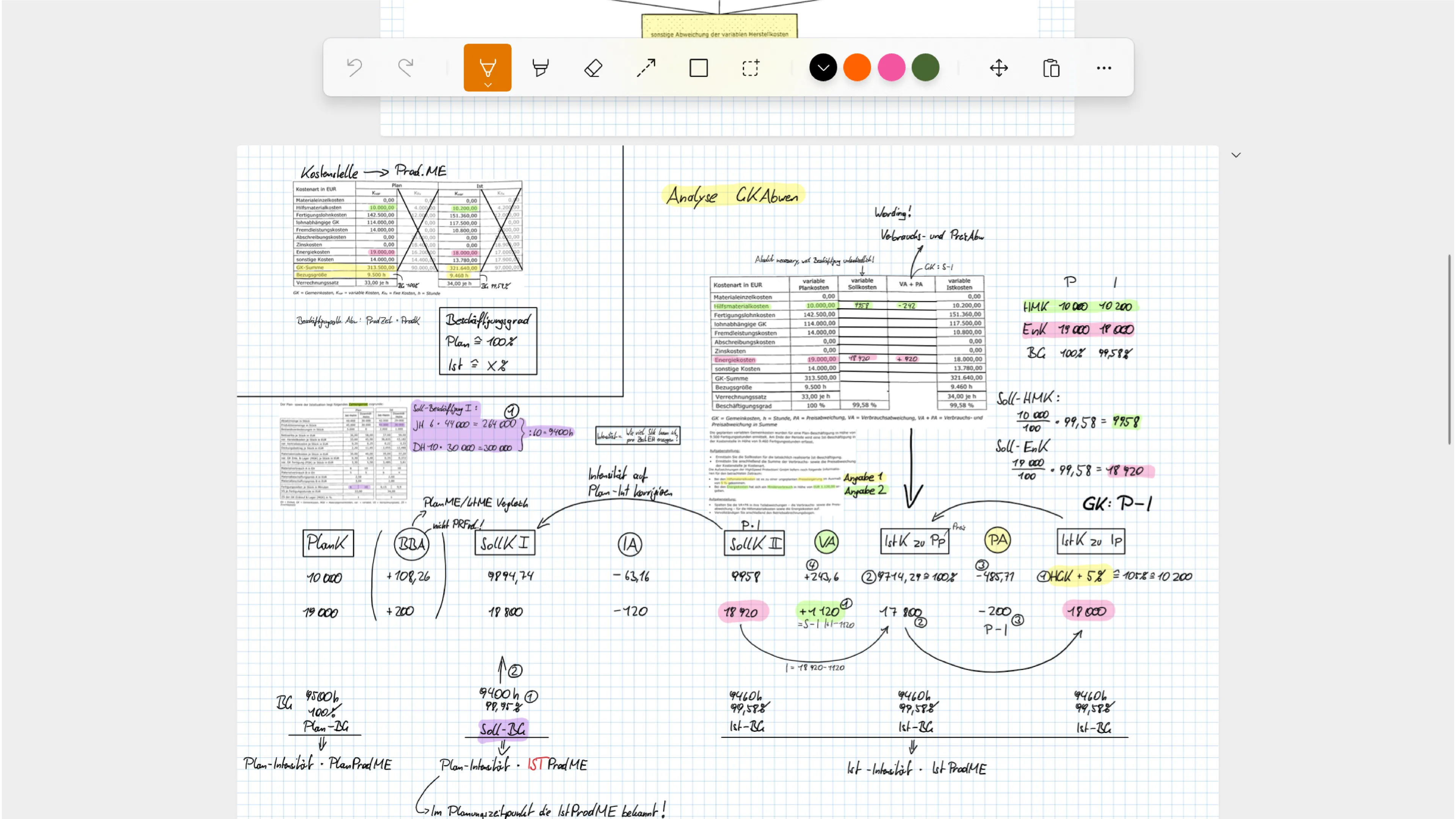
And then I found it! …or rather, I made it ;). I took all of the failed expectations and disappointments and decided to do the thing myself, together with a dear friend of mine. And, from all the objectivity I am still capable of, I do believe that Noteastic is the best handwritten note-taking app on Windows. I wouldn’t lie to myself about the note-taking app I use every day. Every criticism and unmet expectation we encountered in other apps became the foundation when building Noteastic. Let me tell you what I enjoy about working with Noteastic.
What I enjoy about Noteastic
The app is made for handwritten notes. That is the most important thing to me. The entire app is built around the simple goal of placing elements, such as ink strokes, highlighters, or shapes, onto a page. No gimmicks and no useless features scattered throughout the app. We also made a huge effort to handle PDFs as well as possible, and I am very happy with Noteastic’s performance in that regard. My requirements did not change. I still have to handle dozens of PDFs all the time. The Library is a clean, separate view with Folders I can color-code. This is still incredibly important to me, knowing that I have notes and PDFs of ~30 courses in my library from university alone!
Made for Windows
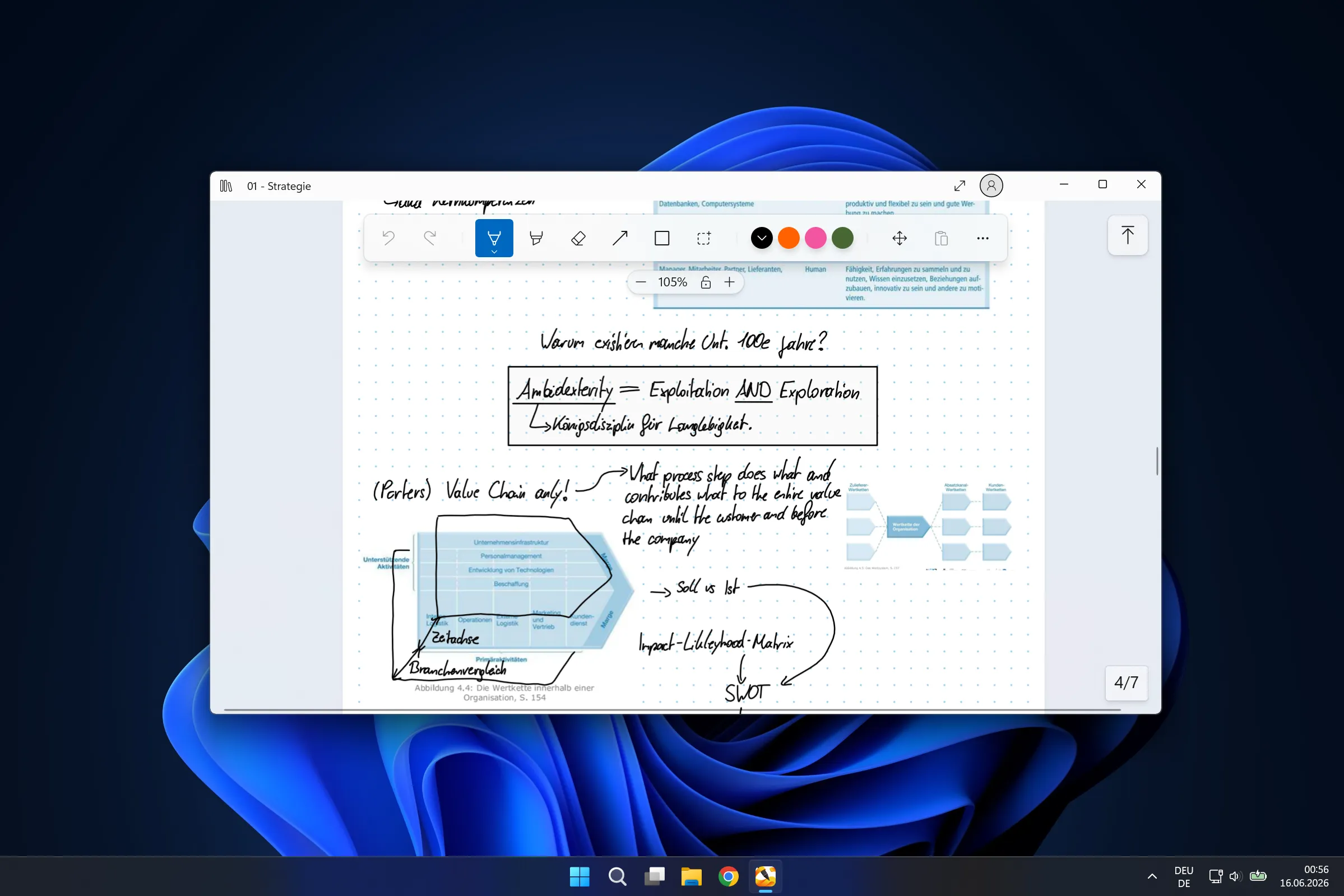
Another important point to note is that Noteastic is MADE for Windows. Unlike other apps that tried to cheaply port their iOS apps to Windows, we decided to make the Windows platform our home. You can feel it throughout the entire app. The most important place this shows is in the writing experience. Noteastic has super low-latency inking, which means that no matter how fast you write, the ink stroke always comes out of your pen’s tip. This is not a given among note-taking apps, and it’s amazing. This is the feeling I always envied when using apps on iPads, for example. Everything is just so clean and easy to use on these devices, and we managed to achieve the same experience in Noteastic.
Aesthetic app design
I also love using Noteastic because it is just so clean. I have always tried to keep the app as light and intuitive as possible because I am convinced that a note-taking app should primarily help you focus, not obstruct your view with dozens of features you don’t need in the moment.
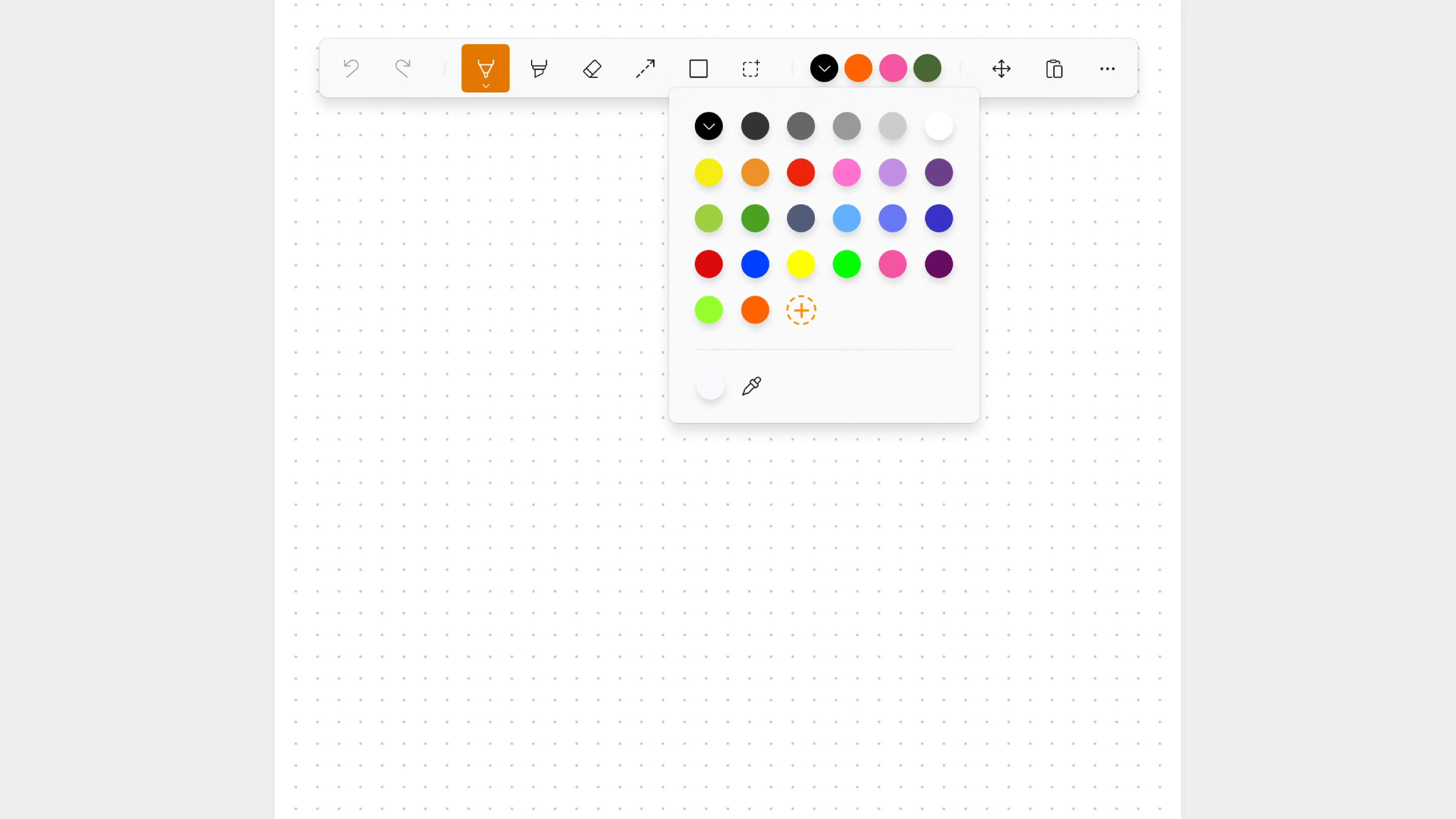
This makes the entire experience of using Noteastic ever so flowy. In general, I also think apps must be aesthetically pleasing for people to enjoy using them, and Noteastic’s simplistic design delivers on that front. Why make it complicated if it doesn’t have to be?
The Library
Noteastic has a dedicated library page to sort and organize Notebooks and create folders or books wherever you need them. This is absolutely necessary for me and helps me find notes I wrote years later. I maintain folders for my university lectures, personal matters, and work-related topics. Everything is neatly organized, so I can quickly find the notebooks I need and add notes wherever necessary.
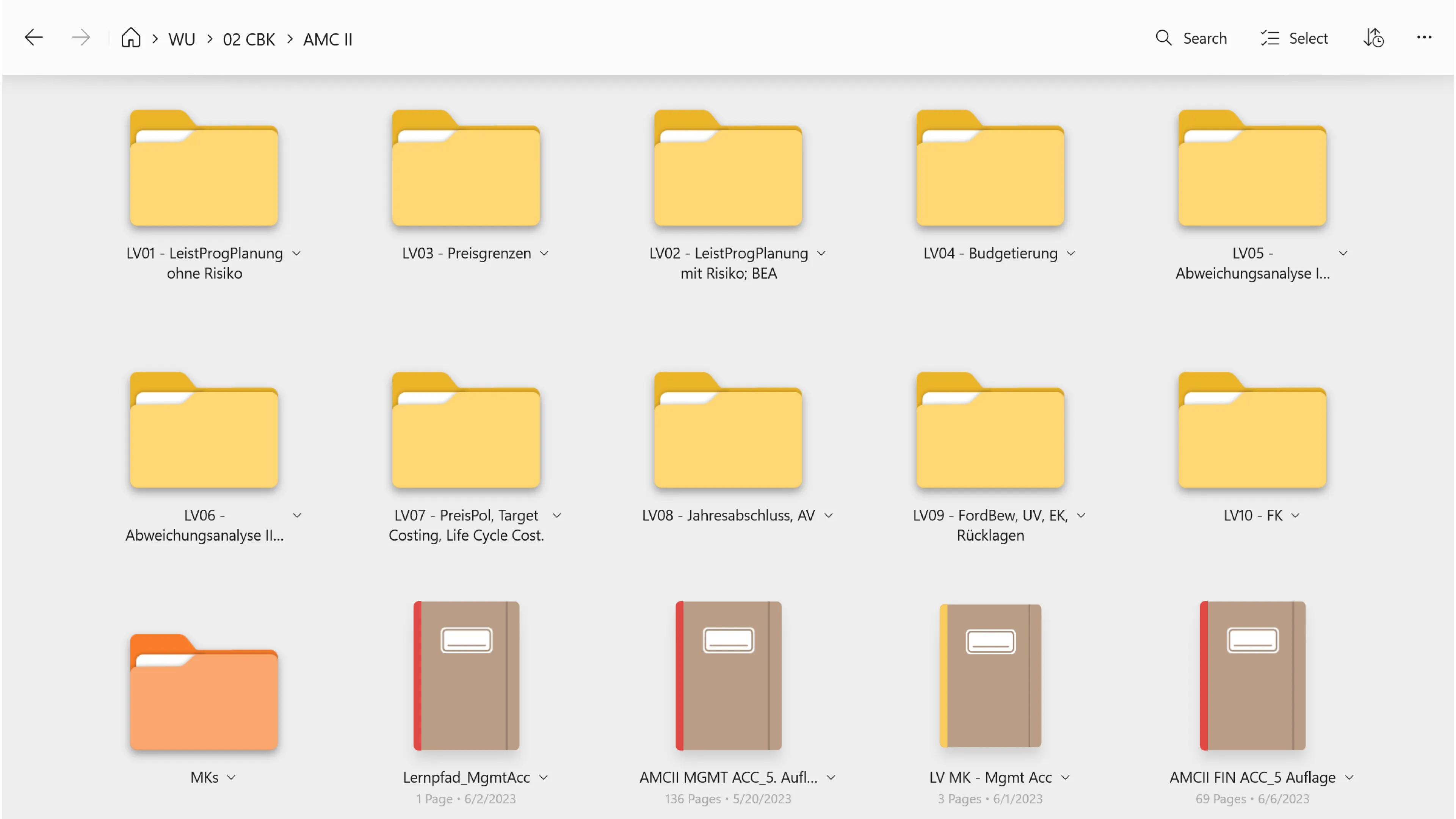
I think the library is what makes the difference between a rudimentary note-taking app for small, ad hoc notes and one that serves as a knowledge base and an actual vault for thoughts. I find the thoughts I write in Noteastic valuable, and I want to keep them for years to come in an app I trust.
If you are curious about how I personally organize my notes, you can find my workflow in another blog I wrote about this topic!
PDF annotation
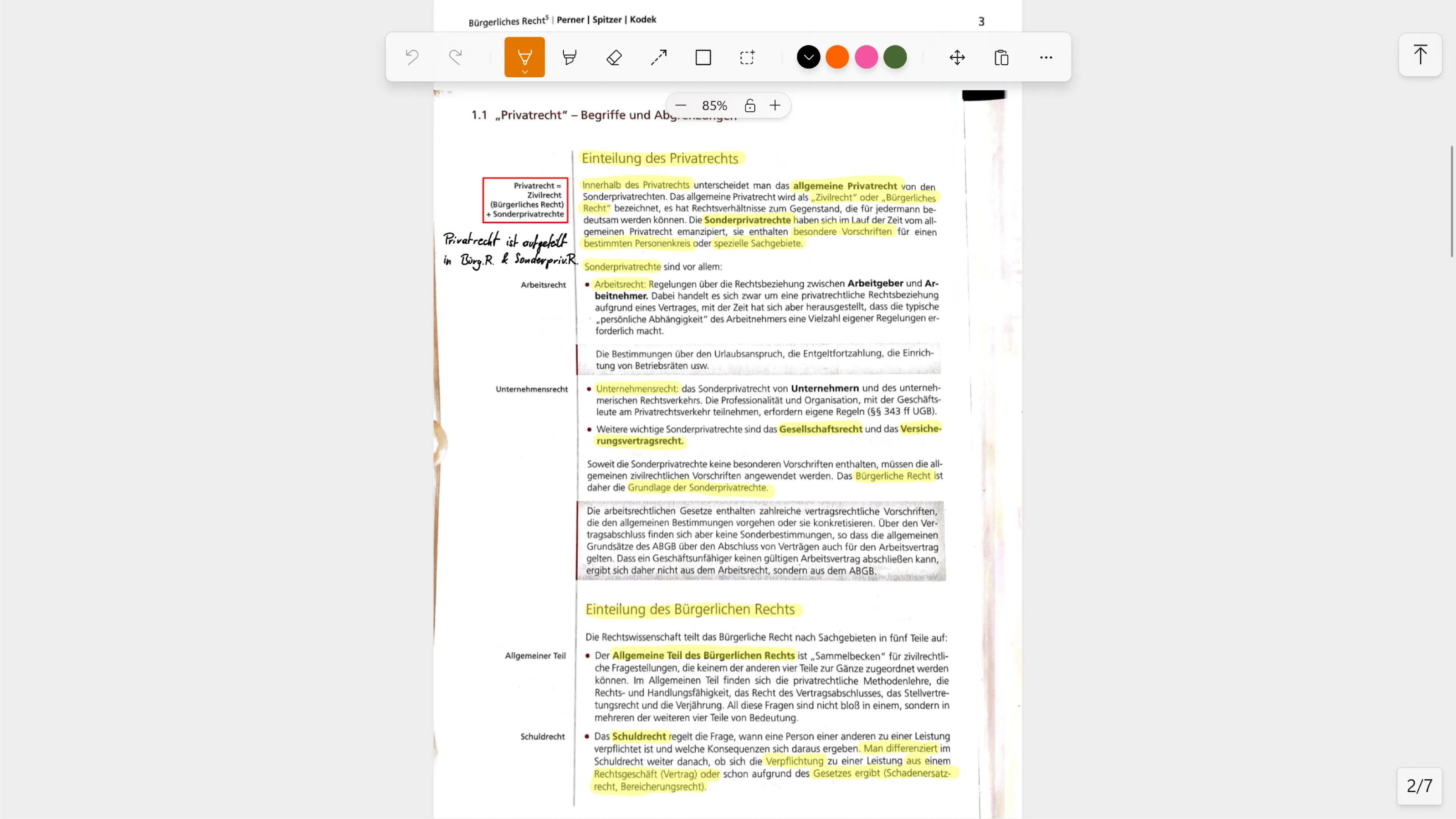
Noteastic works amazingly well with PDFs. And I love it. Now my workflow is simple: I just drag the PDF I need to work on into the App and start annotating it. This is exactly what I wanted and needed, and it works flawlessly. Reading through documents and highlighting along the way became an easy task. Annotating slides during lectures has also suddenly become super simple and helps me a lot with learning. When I write my course summaries, I simply go back to the notes I took on the slides and compile all relevant information into a summary. The lightness of this workflow is exactly what I was missing in other apps.
Touch usability
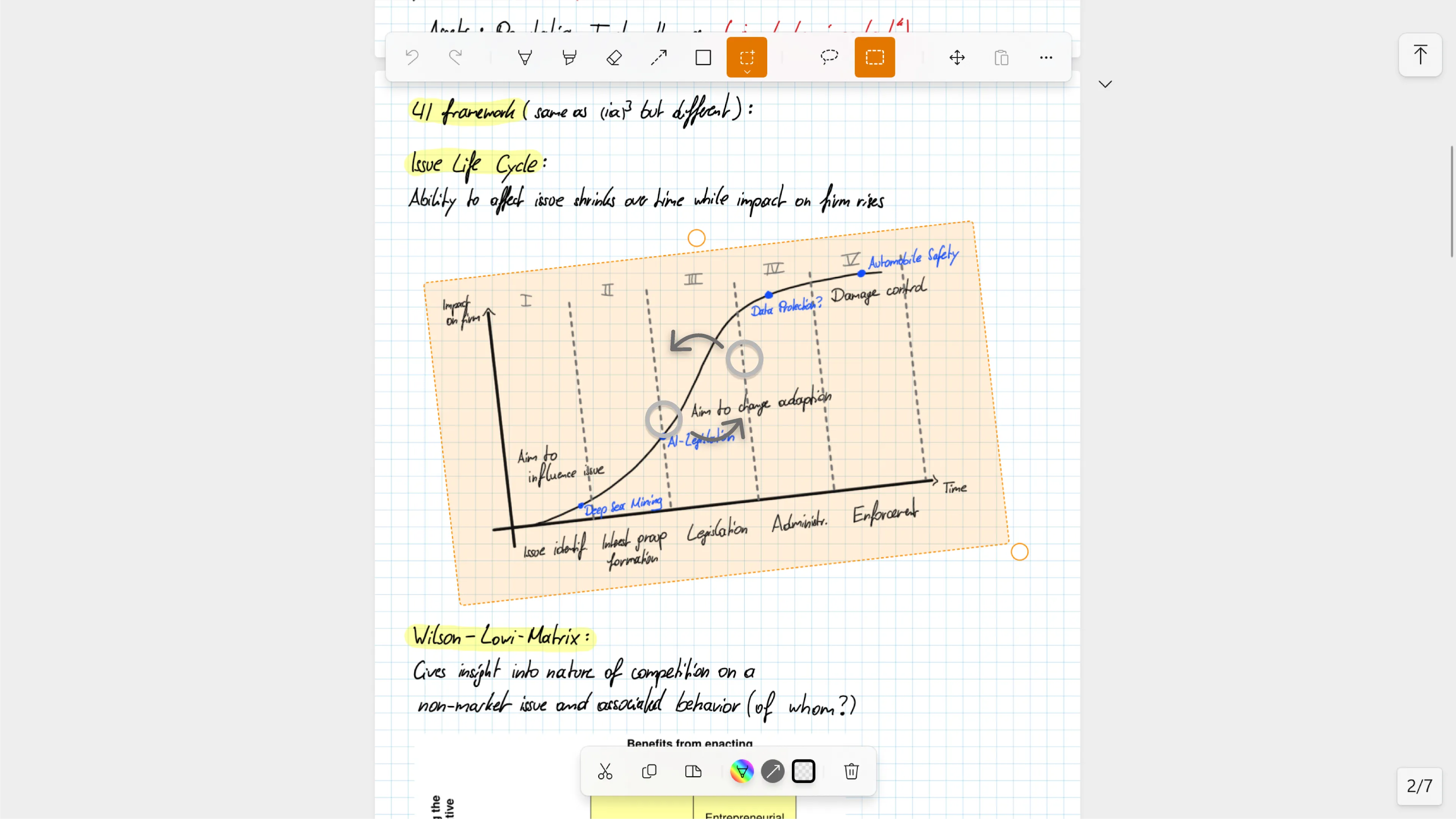
What I also enjoy a lot is that I can use Noteastic holistically and comfortably with my fingers and my pen. The buttons are big, so I never misclick. Selecting and moving objects is as easy as circling them and then dragging them around the page with my finger. Scaling something up is a simple pinching gesture. This is a level of touch-friendliness I didn’t see in any other app, and I am just so happy that Noteastic really nailed it.
Finally, 2-in-1 laptops fulfill their potential!
Ultimately, I think Noteastic finally surfaced the potential I saw in my touch-laptop. Before, I was already wondering whether it wouldn’t have been better to simply get myself a cheap laptop and an iPad. One for typing, one for writing. But today I can confidently say: No, I was only missing the right app! I hope you will find a note-taking app that suits you too. And if your choice falls on Noteastic, I am happy to welcome you on board. 😉
-Lukas
Co-Founder and CEO of Noteastic