6 Power Features in Noteastic
Introduction
I want to share a few tips and tricks I make use of all the time in Noteastic. With these little shortcuts I speed up my note-taking, save time mid-lecture and generally improve my writing flow. I am sure you didn’t know all of them. 😉
Lasso only what you want
Ever wondered how you can select just the pen strokes on top of a shape or only the highlighter behind your notes? Actually, that’s easy and you only need to do the following:
Just pick the Lasso tool, click it once more to open its flyout, and toggle off whatever you don’t want to grab. You can toggle pen strokes, highlighter, lines, shapes, or images.
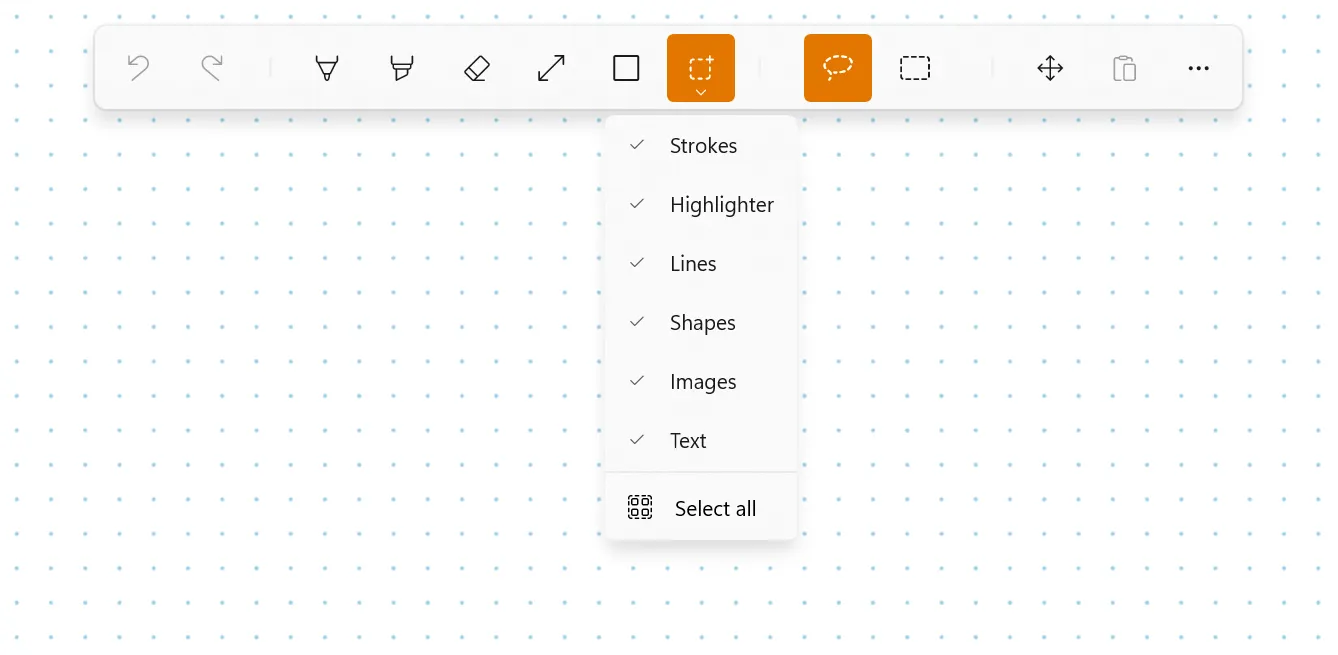
Now your lasso only catches what you left switched on. Everything else stays right where it is.
Erase or don’t erase shapes and lines
You can also customize what kinds of elements your eraser actually erases. Choose whether you want to erase lines or shapes in the eraser flyout here:
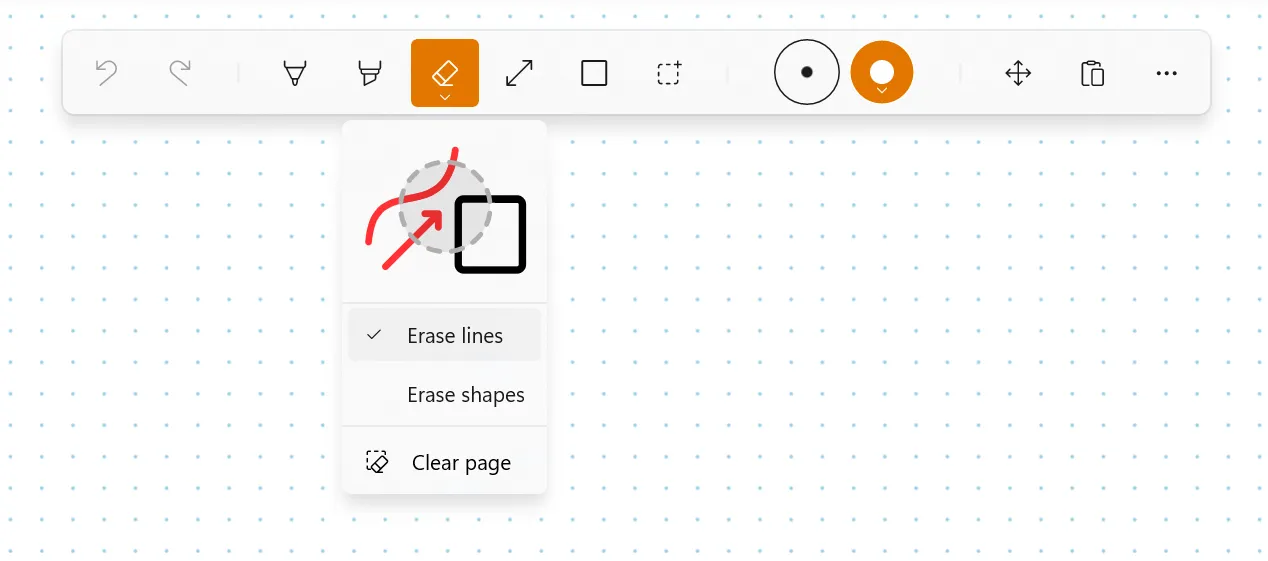
To open it, pick the Eraser (or hit E) and click it once more. Pen and highlighter strokes always get erased, and lines and shapes only when you toggle them on.
Recolor strokes after you’ve drawn them
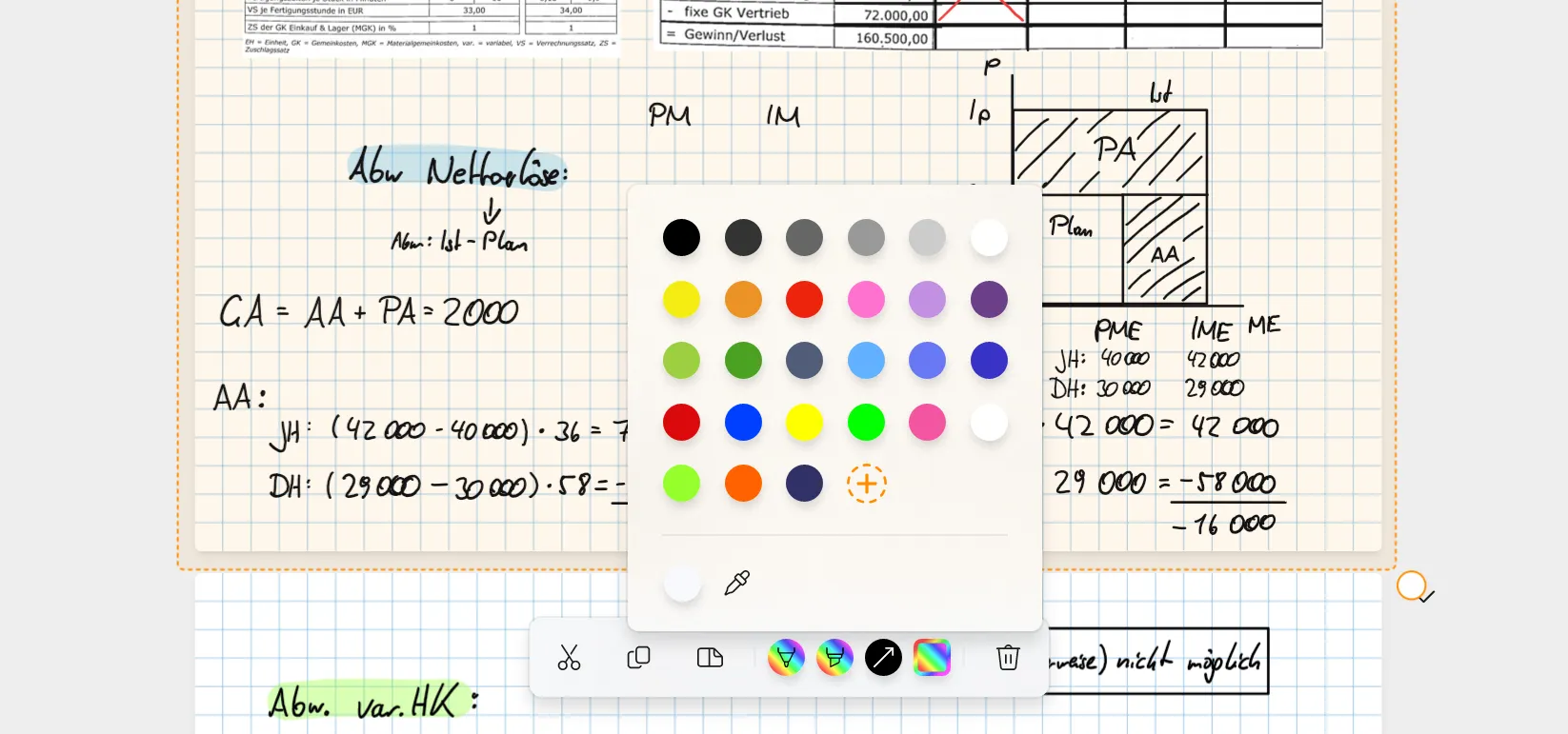
This is a basic functionality of Noteastic and one of the biggest advantages compared to writing on paper. However, I feel like people are underutilizing it. In fact, you can recolor EVERYTHING you’ve ever drawn on your page. Simply lasso whatever you want to recolor. The selection toolbar that pops up has a color button for each kind of element you grabbed: pen, highlighter, line, shape. Tap one, pick a new color, and every element of that type in your selection switches over.
Customize your stylus side button
This is a new feature we added in Version 1.5.5. And I think it is super cool. You can customize what you want your stylus side button to do when clicking it!
Just head to your Settings and open the Quick Action Settings. There you can pick from Lasso, Shape, Line, Eraser, Highlighter, or None to switch it off entirely.
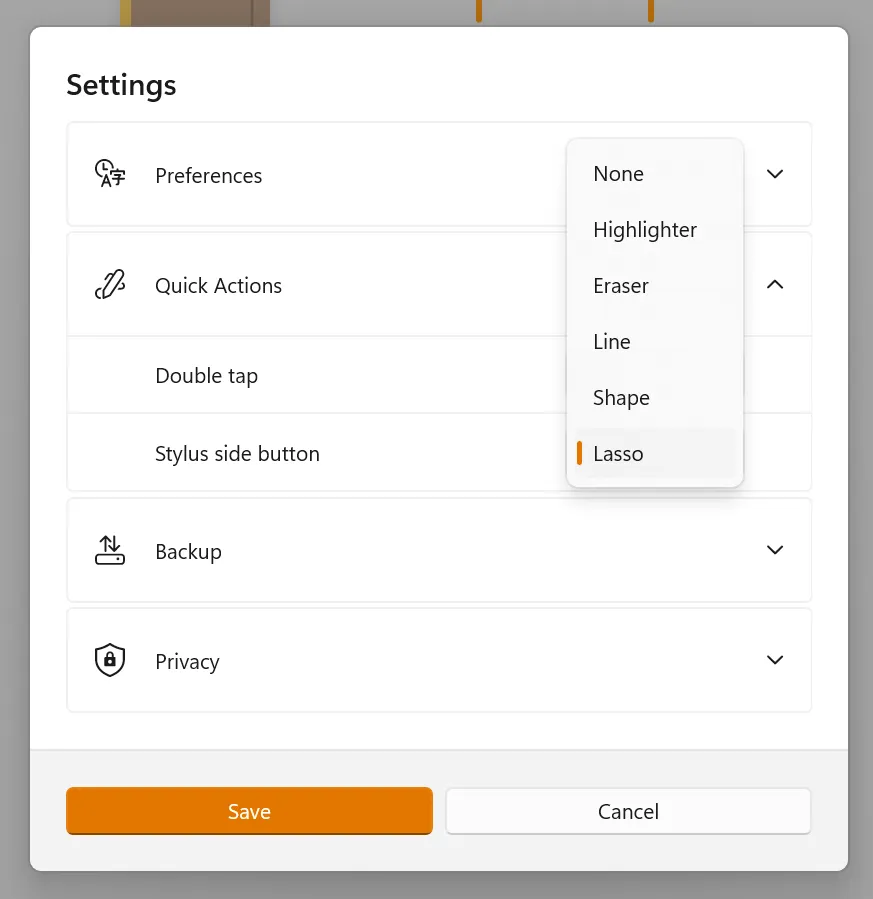
Customize the double-tap action
We also added a bit of a life-saver for people who experience trouble with their touchscreens. If your touchscreen randomly recognizes double-taps and therefore undoes what you’ve just written, you can turn it off in the settings.
You’ll find it in the same Quick Action Settings, right under the side-button setting. Set it to None and your double-taps stop interrupting your flow. Or keep it on Undo if you find the gesture useful.
Use keyboard shortcuts to work faster
For our drawing pad users out there, we also started to add keyboard shortcuts. Note that we’ll expand and maybe rework these shortcuts in the future, but as of now, these are the actions you can do with your keyboard:
Switching tools while taking notes:
Q→ PenW→ HighlighterE→ EraserR→ LineT→ ShapeZ→ LassoU→ PanArrow Keys→ Pan around the canvas
With a selection (in a book or in the Library):
Ctrl + C/Ctrl + X/Ctrl + V→ Copy, Cut, PasteCtrl + D→ Duplicate (only inside a book)Arrow Keys→ Nudge the selection (only inside a book)Delete→ DeleteEsc→ Deselect
These are my tips and tricks for now. I hope they will help you! If you think there is a feature missing in Noteastic, we would love to hear from you in our Reddit community or via email!
-Lukas
Co-Founder and CEO of Noteastic